Documentation
Worktrees
Worktrees check multiple branches of one repository out into separate directories: develop in parallel without touching the main working tree, then merge the branch back and clean up. Vibe Terminal turns the whole cycle into point-and-click.
Creating a worktree
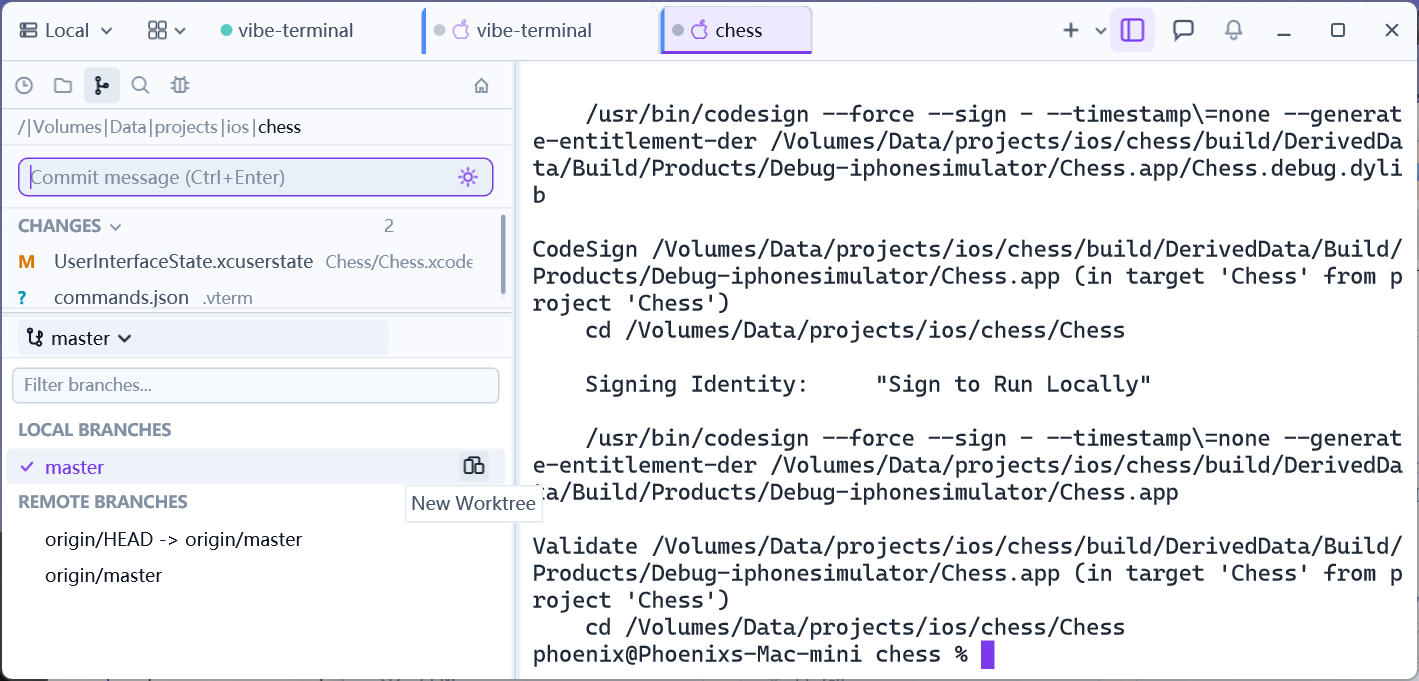
- In the Git panel’s branch list, right-click the target branch (a local or remote one) →
New Worktree; - The dialog names the new worktree after the branch — edit it if you like; confirm, and the server creates the worktree directory and checks the branch out there;
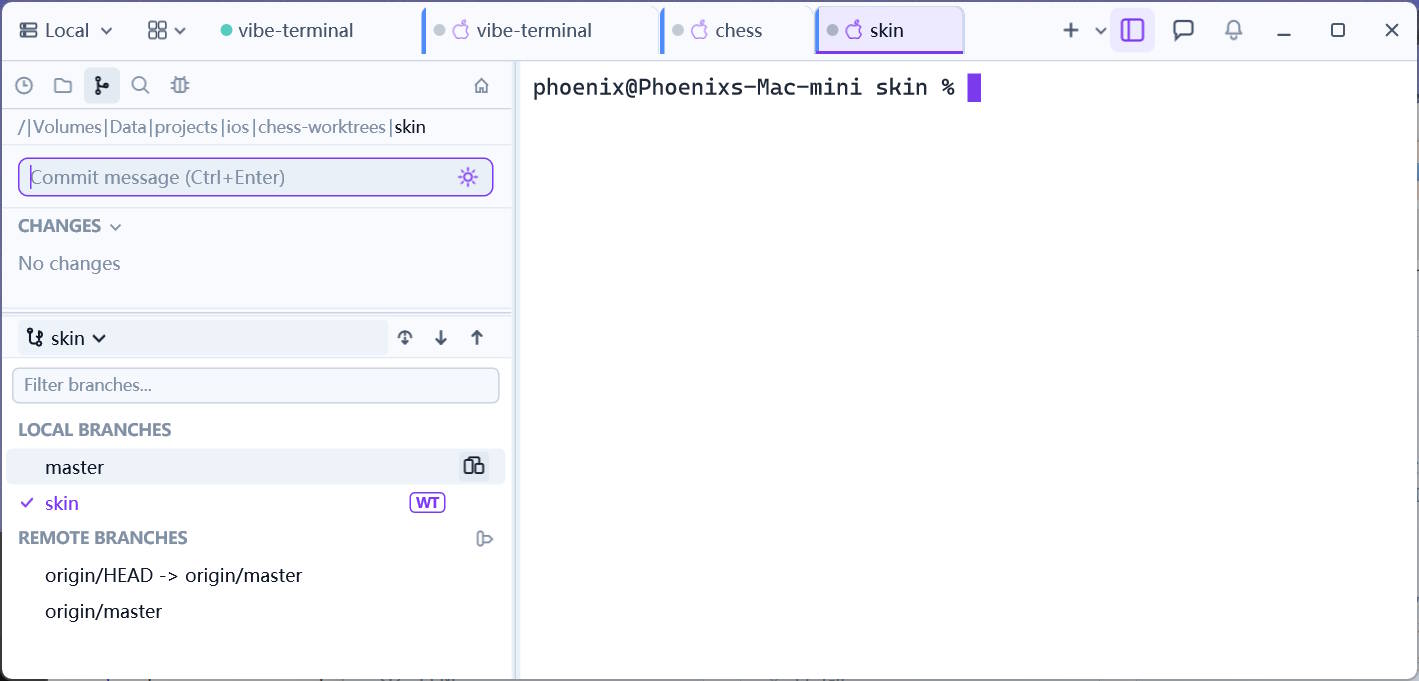
- A new terminal tab opens automatically with its working directory set to the new worktree — start developing in isolation immediately while the main working tree stays on its branch.
Working in parallel
Every worktree is a fully independent working directory: builds and tests for the main branch and the feature branch run side by side in different tabs without interference. Branches checked out in a worktree carry a worktree marker showing their path in the branch list, and committing and pushing work right from the worktree’s tab like on any branch.
Right-clicking a worktree branch adds two worktree-only entries: Reveal in File Explorer (local sessions) opens its directory in the system file manager, and Open in Terminal opens another tab there.
Merging back and cleaning up
-
Commit and push inside the worktree’s tab as usual;
-
Switch the main tab to the target branch (e.g.
main), right-click the feature branch →Merge into Current Branchto bring the work over;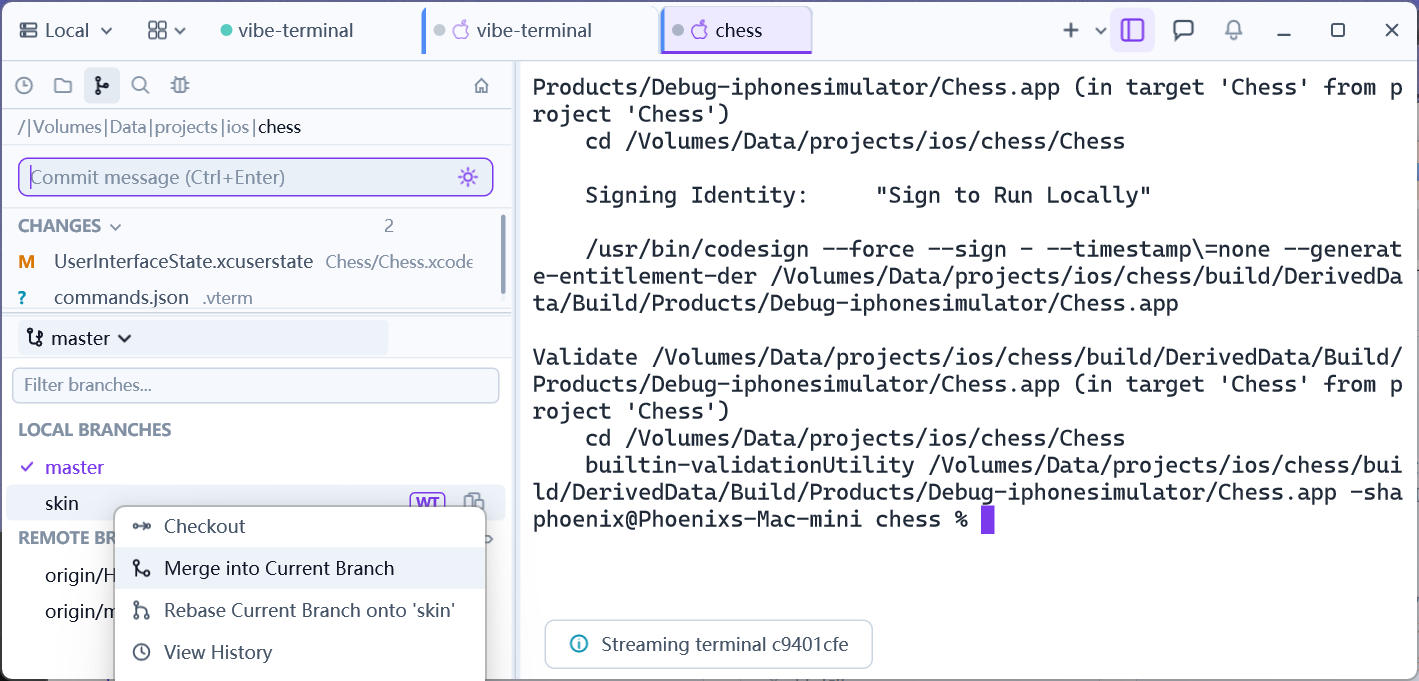
-
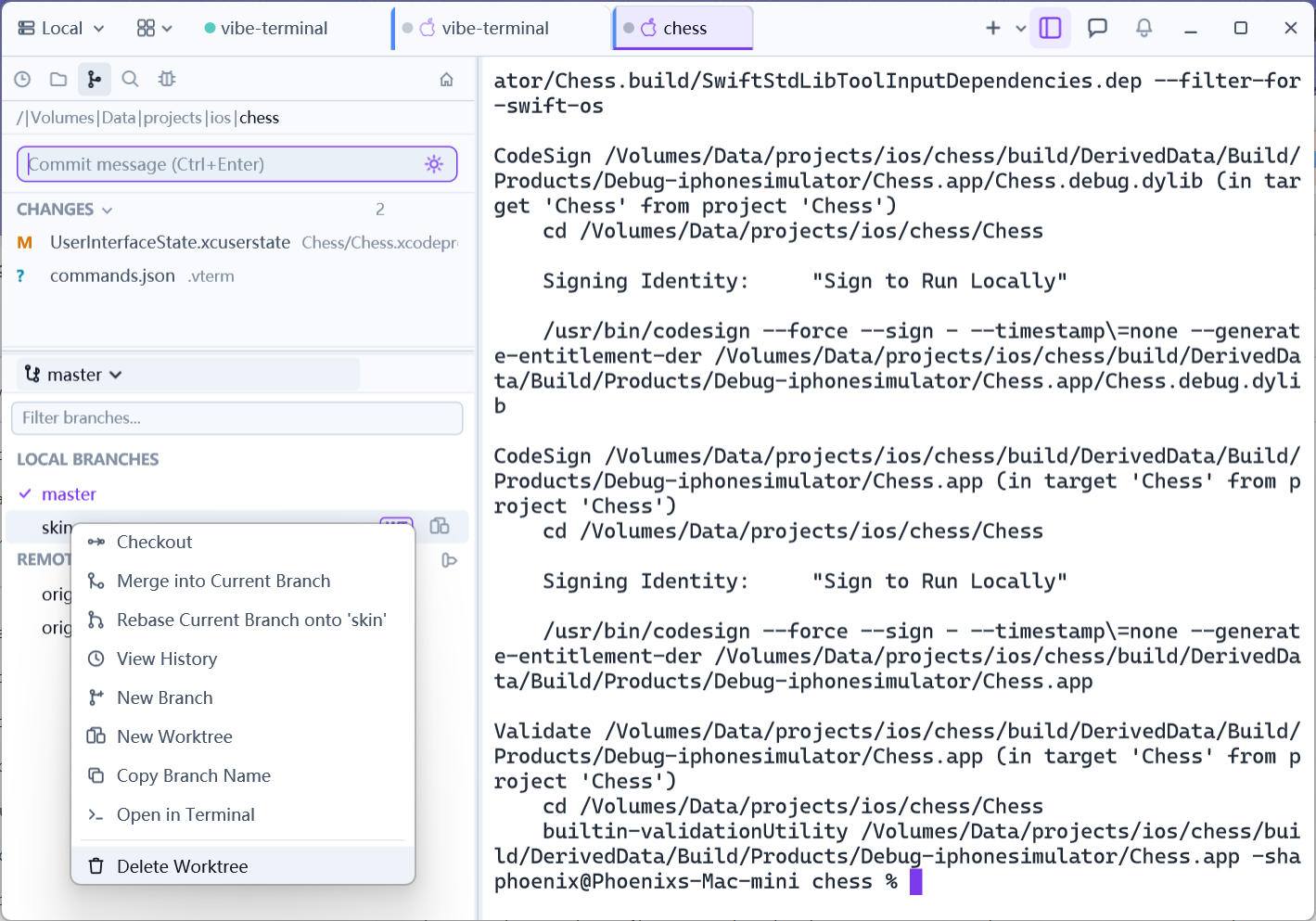
Once merged, right-click the branch →
Delete Worktree: this removes the worktree directory and its branch together. Make sure everything is merged or pushed first — the dialog warns again and the action cannot be undone.