Documentation
WSL on Windows
There are two ways to use WSL on Windows: the light way adds a WSL shell as a terminal profile, the full way installs vterm-server inside WSL. The former only gives you a shell; the latter unlocks file management, the Git panel, MCP, and everything else.
The light way: a WSL terminal profile
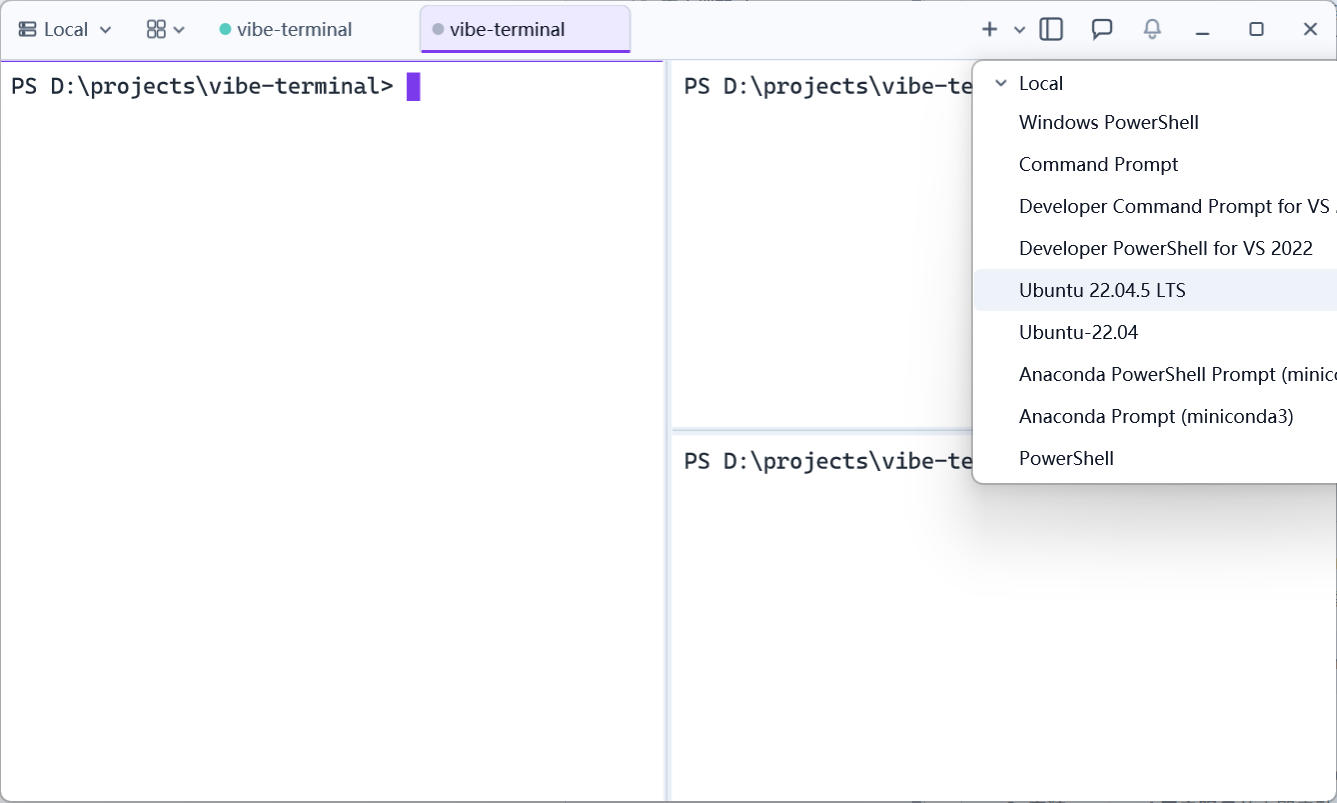
On Windows, WSL terminal profiles load automatically: at startup the server detects wsl.exe and enumerates the installed distributions, adding one profile entry per distro to the profile list (e.g. Ubuntu (WSL); a generic WSL entry appears when no distros are listed).
To use one, simply pick the WSL entry in the client’s title-bar profile menu — the distro launches and drops you straight into its terminal, just like opening a local one.
Limitation: such sessions run on the Windows-side server — the client’s file explorer, Git panel, environment variables, and friends do not work (they operate with Windows file-system semantics and cannot see the Linux file system inside WSL).
The full way: install vterm-server inside WSL
Treat WSL as its own Linux machine and install the headless vterm-server. The website offers a one-line script — paste it into a WSL terminal:
curl -fsSL https://vterminal.dev/install.sh | bashThe script automatically:
- Detects the WSL/headless environment and downloads the headless vterm-server into
~/.local/vterm; - Installs a systemd user service and starts it immediately — it runs on every login (WSL start included), no manual start needed;
- Adds
~/.local/vtermto your PATH.
When WSL has systemd disabled, the script points you at adding
[boot]systemd=trueto/etc/wsl.conf, runningwsl --shutdownon the Windows side, and re-running the installer.
Opening the configuration page
Inside WSL:
vterm-server --openThe command prints the Web UI address (http://localhost:<config-port>/) and tries to launch a browser (under WSL via wslview, the Windows default browser). Thanks to WSL2’s localhost forwarding, opening the same address in a Windows browser works just as well. While the server is running, the printed URL carries a one-time sign-in token (?ticket=..., minted by the server over a local socket) so the page opens already signed in.
(Optional) Share the WSL server into the host relay
If the Windows machine also runs vterm-server (acting as the relay), the WSL server can attach under it so the client sees both “machines” through one local connection:
- On the Windows server’s Web UI, click the QR code to copy the share string;
- Open the WSL server’s Web UI (address from the previous section), click the paste button that appears next to the
Relay Addressfield to auto-fill address and key, thenApply; - While the Windows vterm-server runs, the client sees the WSL server’s terminals, files, and Git under the local relay.
Under WSL2’s default NAT networking, WSL reaches the Windows host via the host’s address on the WSL side (the default gateway — the nameserver in
cat /etc/resolv.conf); with mirrored networkinglocalhostworks. See the Relay chapter for relay details.