Documentation
Overview
The server protects every TLS endpoint it exposes — the Web UI, client connections, and forwarded ports — with a certificate issued from its own private Root CA. This page in the Web UI (Certificates & TLS in the sidebar) is where you manage that CA, control which names the certificate is valid for, and hand the CA to clients that want to verify the server strictly.
How it works
- The server generates a private Root CA once and keeps it for the lifetime of the installation. Everything is signed by it;
- The CA signs a leaf certificate for the server with a 90-day lifetime, covering the hostnames and IP addresses clients actually use to reach it;
- When the machine’s hostnames, network interfaces, or SAN entries change, the leaf is reissued automatically — the Root CA never changes, so clients that already trust it keep trusting the server;
- A new leaf is swapped in through a shared certificate resolver and hot-reloaded: existing connections are never dropped, and new handshakes immediately pick up the latest certificate. If a renewal fails, the previous certificate stays active.
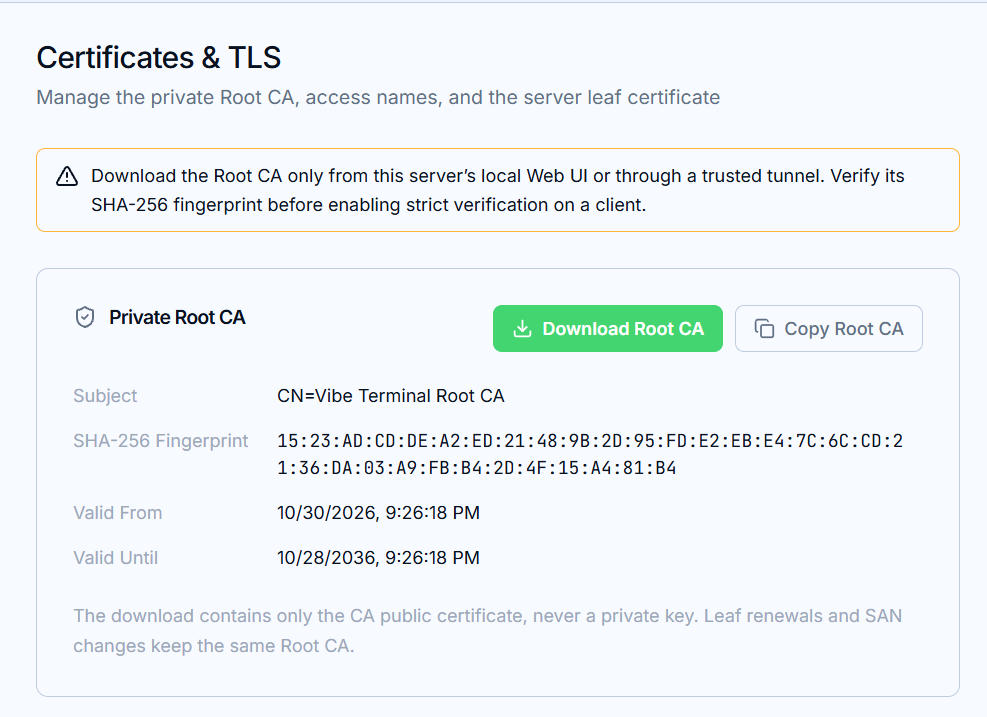
What you’ll find on the page
Private Root CA— download or copy the CA’s public certificate to distribute to clients (and their browsers). The download never contains a private key;Domains & IP Addresses (SAN)— the list of names the leaf certificate is valid for. Covered on the next page, Domains & SAN Management;Server Leaf Certificate— the live certificate: status, subject, SHA-256 fingerprint, validity window, and SAN entries.
Custom TLS certificates
If a custom TLS certificate is configured for the server, it stays in charge: the managed certificate on this page is still generated and kept up to date, but it does not replace the configured custom identity. The page shows a notice while a custom identity is active.
Why trust the Root CA
Clients that only need encryption work out of the box. Clients that want to verify the server — the strict mode described on the last page, Strict Verification on Clients — need the Root CA’s public certificate, and it must travel over a channel you trust:
Download the Root CA only from this server’s local Web UI or through a trusted tunnel, and verify its SHA-256 fingerprint (shown on this page) before enabling strict verification anywhere.
The same CA also signs the certificates used by port forwarding (see the Port Forwarding page). Once a device trusts the Root CA, forwarded URLs open without the browser’s connection is not private warning.