Documentation
Adding Context to Agents
Code agents (Claude Code, Codex, Kimi, Pi, OpenCode…) only know what reaches their input. Adding Context is how you hand them file paths and code snippets without retyping: drag files from the Explorer, or drag selected text from the code editor and the git diff view, straight into the agent’s terminal or the Copilot chat input.
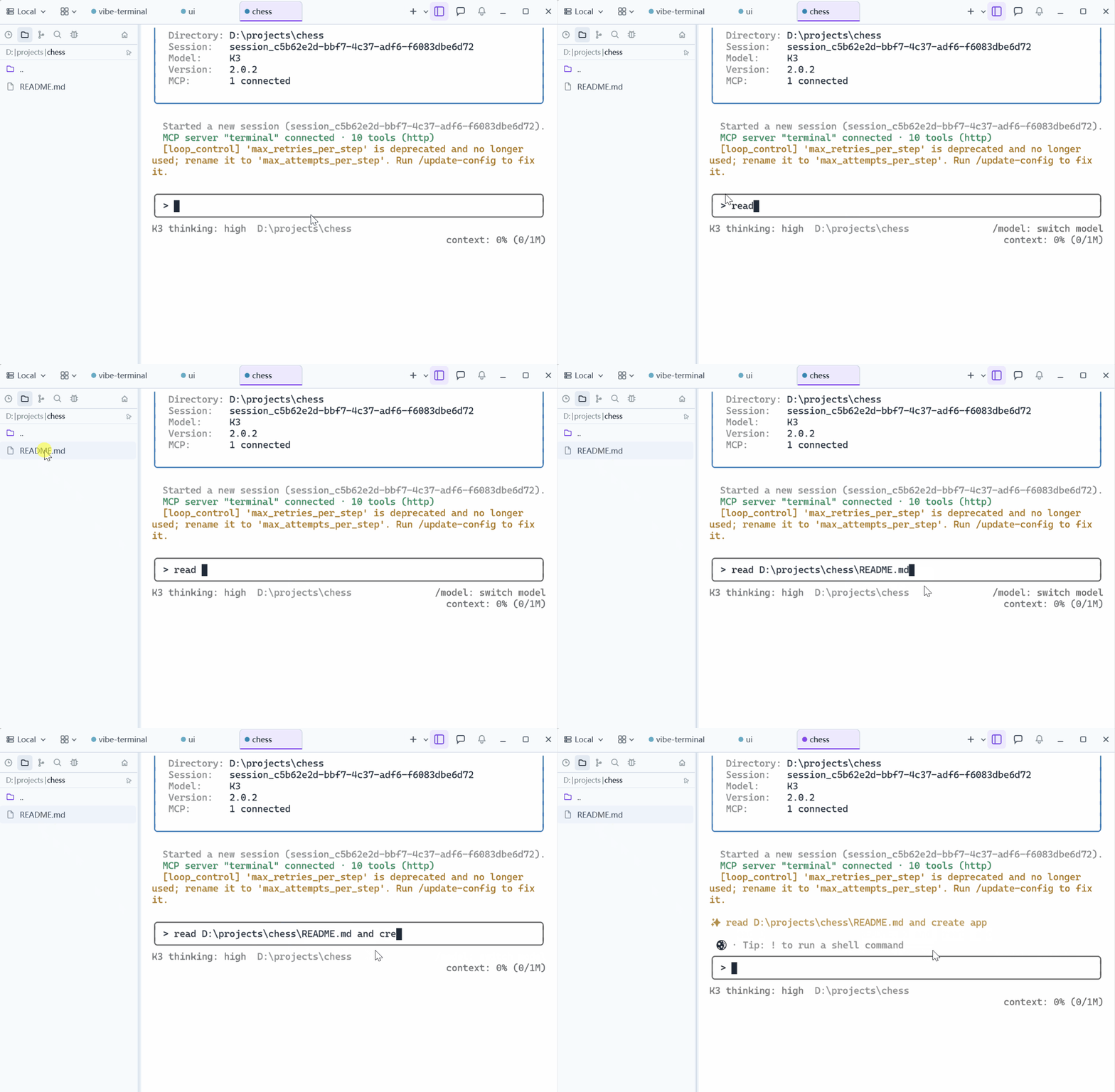
Dragging files in
Press a file — or a multi-selection — in the Explorer file list and drag it:
- Onto a terminal: the full path(s) are typed at the drop point, space-separated, ready to become part of your next prompt to the agent;
- Onto the Copilot chat input: the paths are inserted into the message draft, one per line, so you can assemble a multi-file prompt before sending.
Paths dragged in from your OS file manager and dropped on a terminal are quoted automatically, so names containing spaces survive intact.
Dragging selected code as context
Select text in the code editor or in a git diff, then press the selection itself and drag it onto a terminal:
- When the terminal is running a code agent, the drop inserts a context block — the file path, the line range, and the snippet wrapped in a code fence:
File: crates/vterm/src/ui/terminal_view.rs
Lines: 558-566
```
fn can_accept_native_drop(&self, info: &DndInfo) -> bool { … }
```- When the terminal is at a plain shell prompt, the drop types the raw selected text instead, so the same gesture works for ordinary commands too;
- When the diff is viewed at a specific commit, the block additionally carries a
Commit:line pinning the exact revision.
Copy Context
The same block lives on the right-click menu: Copy Context in the code editor and the diff view copies it to the clipboard. Paste it into the Copilot chat input — or into any other agent — when dragging is inconvenient. The animation above shows the resulting block in the agent’s input.
Tips
- Multi-select in the
Explorerto drop several paths at once; - The Copilot chat input sends straight into the terminal like typed input (see
Code Agent History), so context added there reaches the agent exactly as if you had typed it; - Combine with
Auto Confirmto let the agent act on the dropped context without further prompts.